
How to print a design or placement template.
Quick answer: Click Print Preview (Home tab or File menu), click Settings to choose what prints, then click the Printer icon. For a placement template, check Actual Size and Cross Hairs, and uncheck In One Page.
Open Print Preview
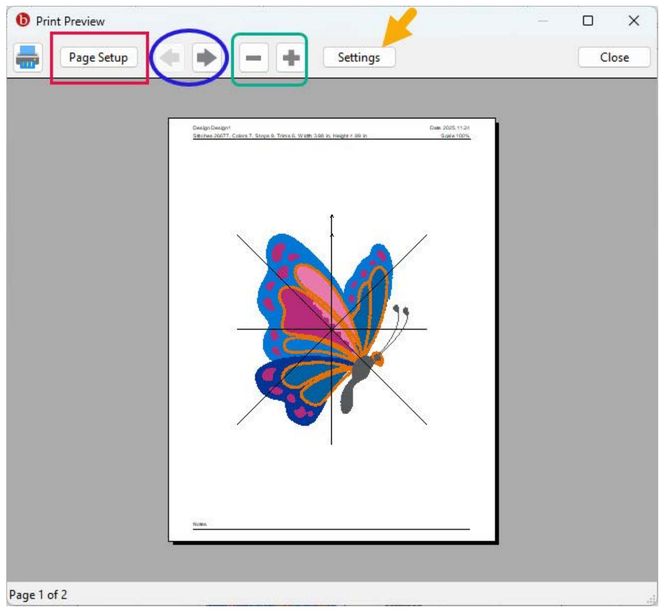
Click Print Preview in the Home tab, or choose File > Print Preview. A preview window shows how the printed page will look.
In the preview window:
- Printer icon – sends the page to your printer.
- Page Setup – choose printer options.
- Left/Right arrows – if a design is larger than the paper, it's split across pages; use the arrows to see each page.
- Minus/Plus – zoom out and in.
- Settings – choose what to include on the printout.
To print directly without previewing, use File > Print (Ctrl/Cmd + P).
Print Settings options
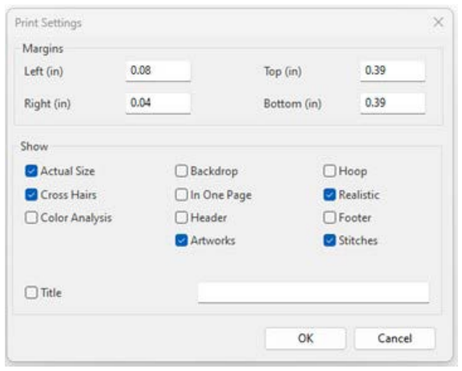
- Margins – set left/right and top/bottom margins.
- Title – check the box and type a title to print at the top center.
- Actual Size – prints the design at its true size.
- Cross Hairs – adds a crosshair at the design center.
- Color Analysis – lists the color sequence of the stitch-out.
- Backdrop – prints the backdrop image.
- In One Page – fits the design onto one sheet of paper.
- The Header – prints full design details at the top.
- Artworks – prints artwork elements (including Notes).
- Hoop – prints the hoop chosen in the Hoop Tool.
- Realistic – prints a 3D/realistic view instead of 2D stitches.
- Footer – adds a Notes area at the bottom.
- Stitches – prints the stitches. If this is unchecked, the design won't print.
Print an actual-size placement template
- Open Print Preview > Settings.
- Check Actual Size and Cross Hairs.
- Make sure In One Page is not checked.
- Print.